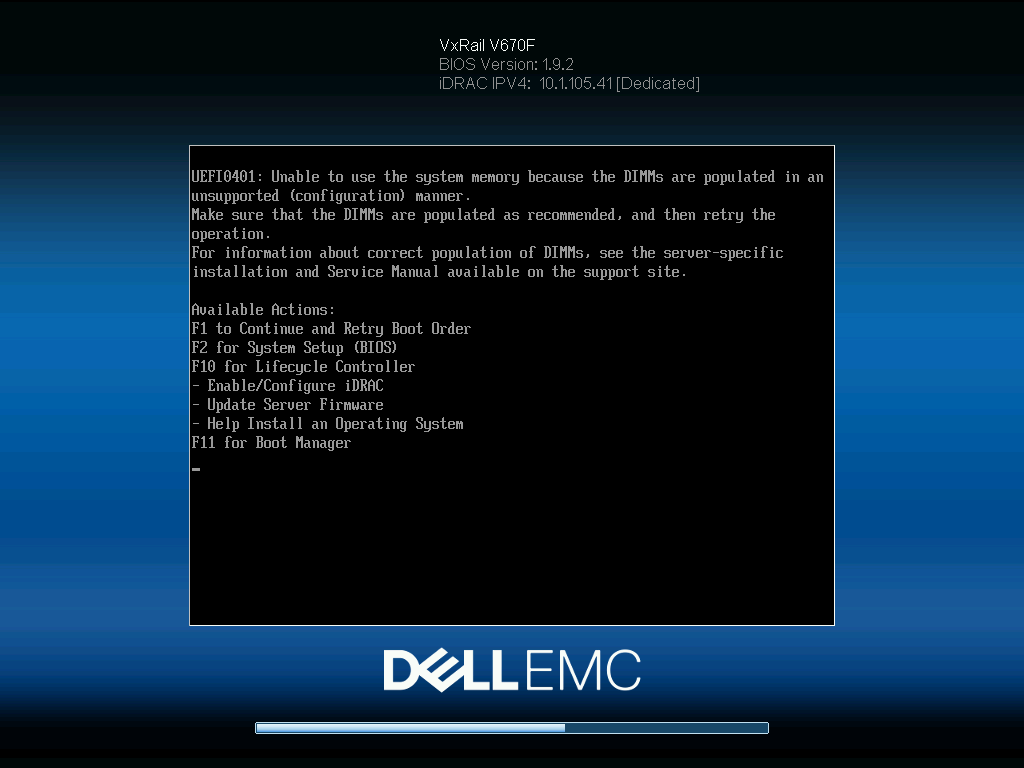
This is an error you see on 15 gen Dell servers like the PowerEdge R750 and the VxRail V670F. In almost all cases it’s because you have the DIMMs in the wrong slots. The memory population rules for this generation are similar to the generations before it – You populate A1, A2, A3, B1, B2, B3 etc. In this case I had DIMMS A1 and A2 populated correctly but I had the DIMMs for CPU2 populated in B1 and B8 instead of B1 and B2.
The exact slot numbering varies depending on the server model and the number of DIMMs being installed, but the key principle remains the same: populate the lowest-numbered slot in each memory channel before moving to the next slot.
You may also see the following log entry in iDRAC:
A diagnostic warning event occurred in the memory device at location identified in the message. The device may be operating in a degraded state. Checking the device and system configuration is recommended for remediation.
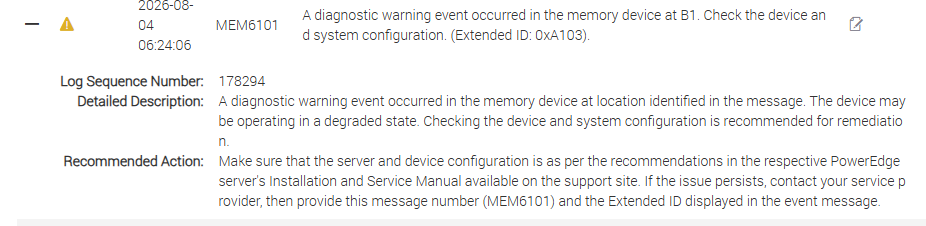
Because the second DIMM was installed in B8 instead of B2, the system generated memory diagnostic warnings even though both DIMMs were fully functional.
Once the DIMMs were moved into the correct slots, the warning disappeared and the system reported the memory configuration as healthy.
How to Troubleshoot
If you encounter this error on a Dell 15G server, work through the following checks before assuming a hardware failure:
- Verify that each DIMM is fully seated.
- Check that every DIMM is installed in the correct slot according to the Dell Memory Population Guidelines for your server model.
- Ensure both CPUs have memory installed symmetrically if your configuration requires it.
- Confirm that all DIMMs are of compatible type, speed, and capacity.
- Clear any existing hardware logs, reboot the server, and verify whether the warning returns.
If the warning persists after confirming the population order, then it becomes worthwhile to investigate individual DIMMs by swapping modules or running the built-in Dell diagnostics.
Why Population Order Matters
Modern Intel Xeon platforms use multiple memory channels per processor. Installing DIMMs in the wrong slots can leave channels partially populated or cause the memory controller to operate outside its recommended configuration.
The result may include:
- Memory operating in a degraded configuration
- Reduced memory bandwidth
- POST warnings
- iDRAC diagnostic events
- In some cases, memory not being detected at all
The hardware itself is often perfectly healthy—the issue is simply that the DIMMs are not installed in the order expected by the memory controller.
Final Thoughts
When working with Dell 15th Generation servers such as the PowerEdge R750 or VxRail V670F, don’t immediately assume a DIMM has failed when you see memory diagnostic events.
The first thing to check should always be the memory population layout. A quick comparison against Dell’s population diagram can save a significant amount of troubleshooting time. In my case, moving a single DIMM from B8 to B2 completely resolved the issue with no hardware replacement required.
Leave a Reply