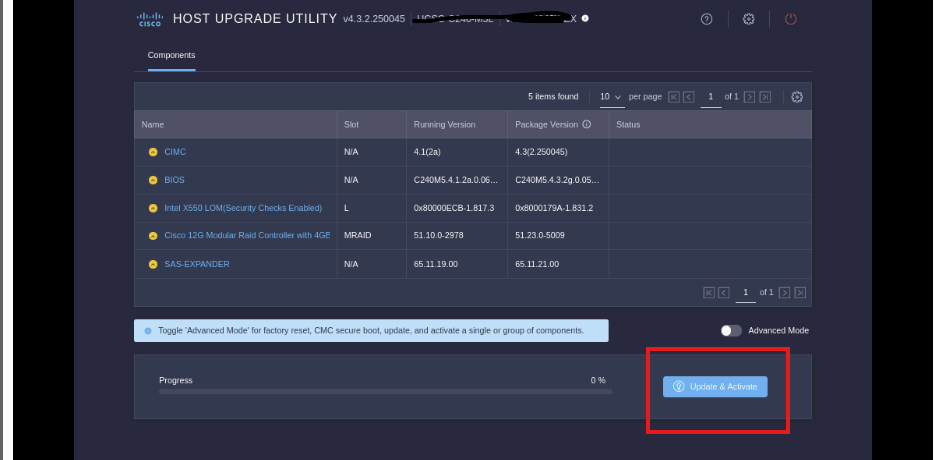
Upgrading a Cisco M5 server is not intuitive at first glance. Unlike Dell servers Cisco does not offer an easy online updater. Instead, administrators use what Cisco calls the Host Upgrade Utility. In laymans terms, this is an ISO that contains the latest firmware for your server. Simply download the ISO and attach it as virtual CD/DVD device inside the Cisco virtual KVM.
Start by downloading the correct ISO for your server. In this example I’ll be using the Cisco UCS C240 – a server I recently updated.
The correct download can be found here.
You will need a Cisco account to access the download. No worries, just create an account and proceed to the download.
The following steps require that you have access to the CIMC. If you haven’t done so please configure the integrated management controller and login.
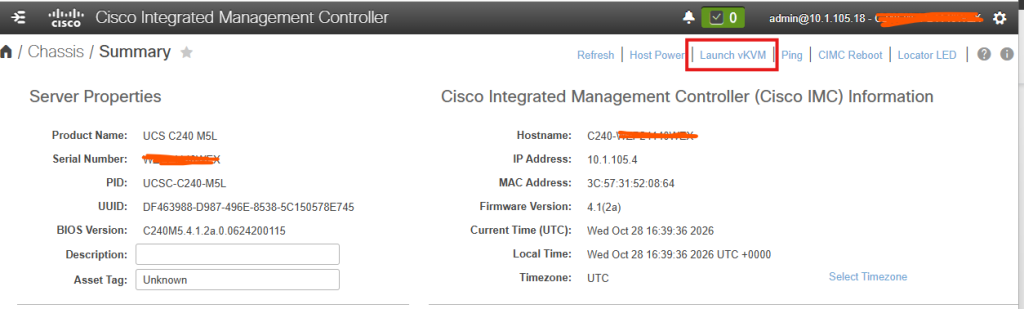
Once you are logged in launch the virtual KVM:
After the virtual KVM launches in a new window click Virtual Media and then Map CD/DVD.
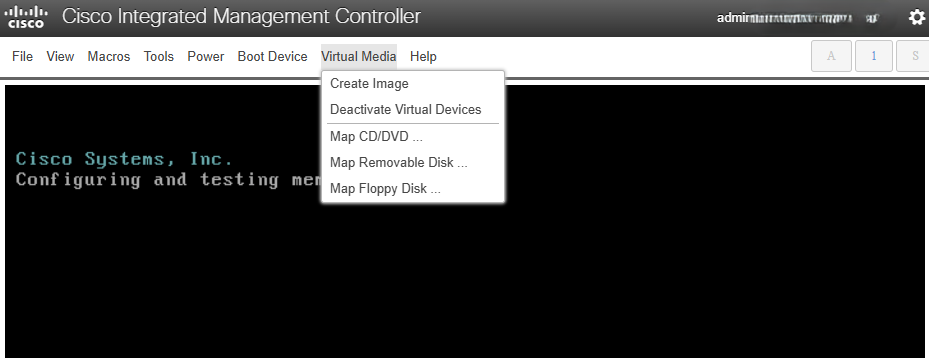
Navigate to the ISO and attach. If you booted all the way through you will need to power cycle the server to boot from the ISO.
During boot hit F6 to access the boot menu. Select the virtual CD/DVD drive.
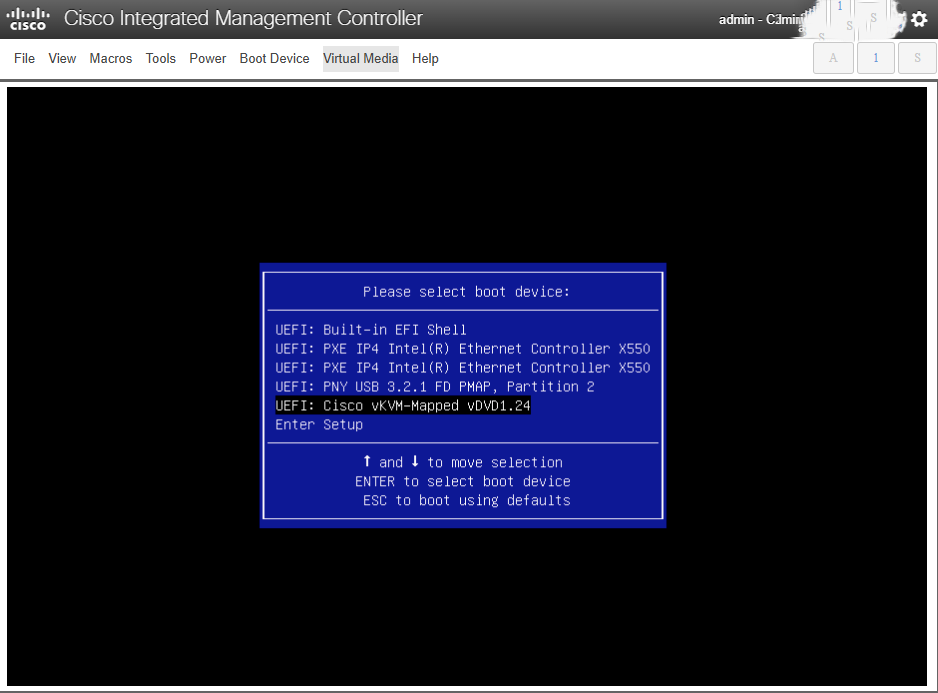
This is what the initial boot up looks like:
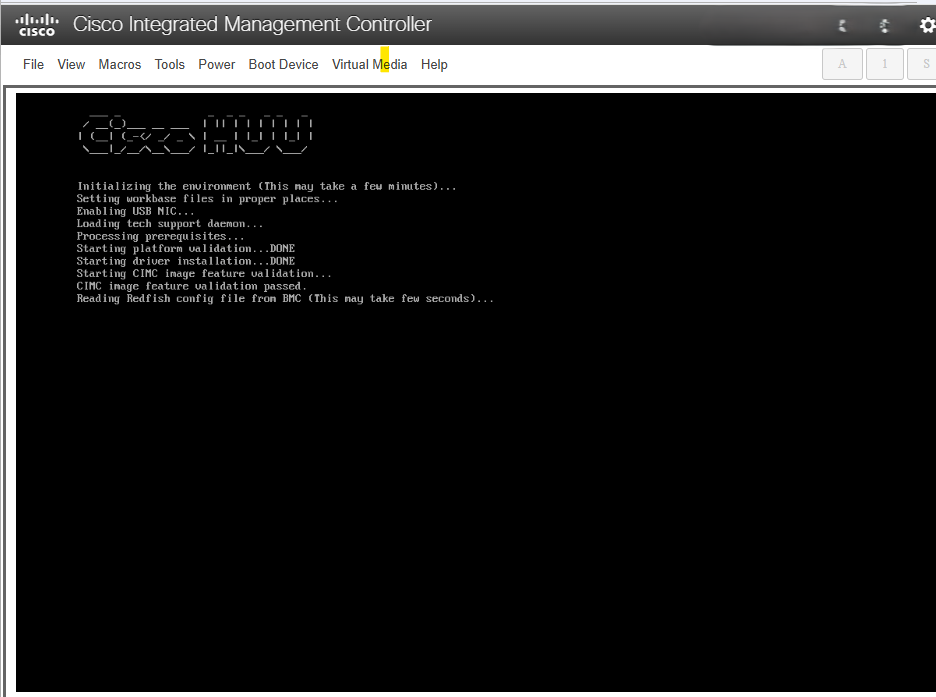
Be patient. It can take some time before the host upgrade utility is displayed.
This is the HUU:
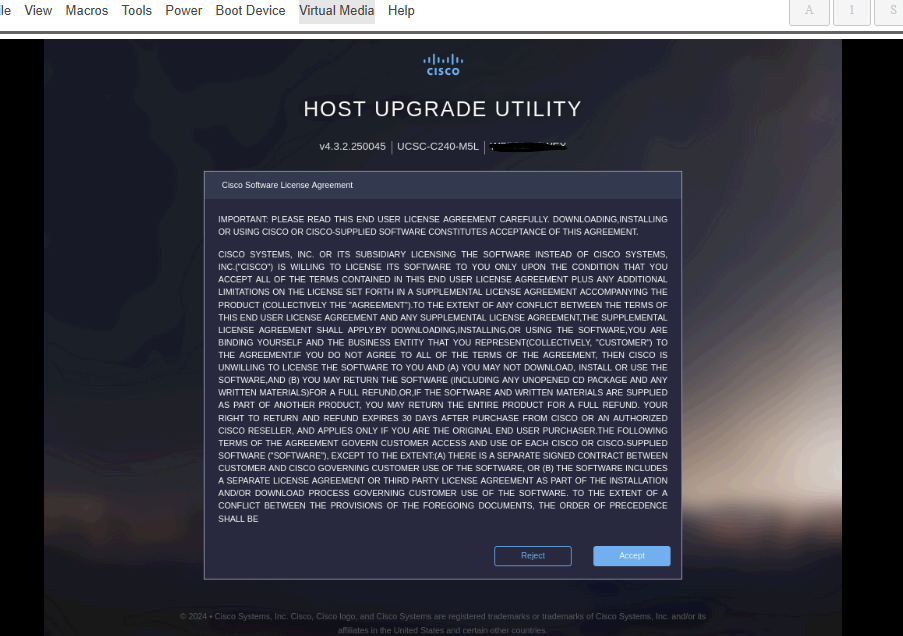
Accept the license and continue. Now it’s just a matter of installing the firmware.
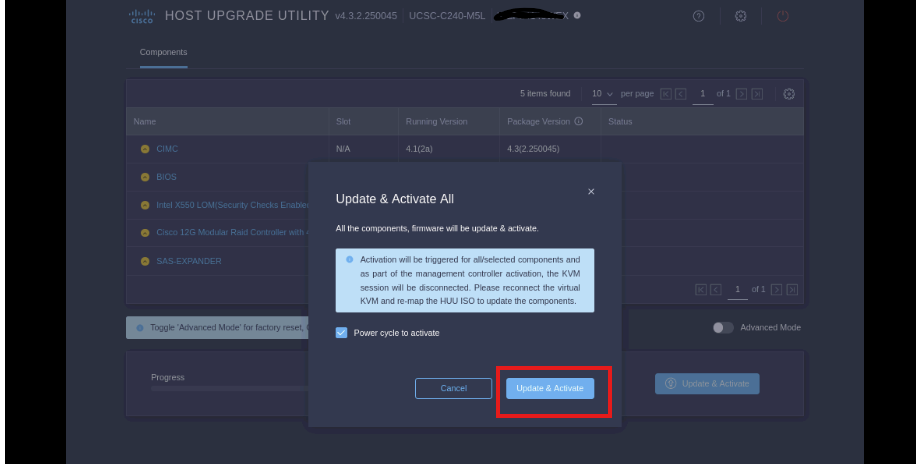
Now sit back and wait for the update process to complete. The server will power cycle after completion.
Leave a Reply